


Introduction
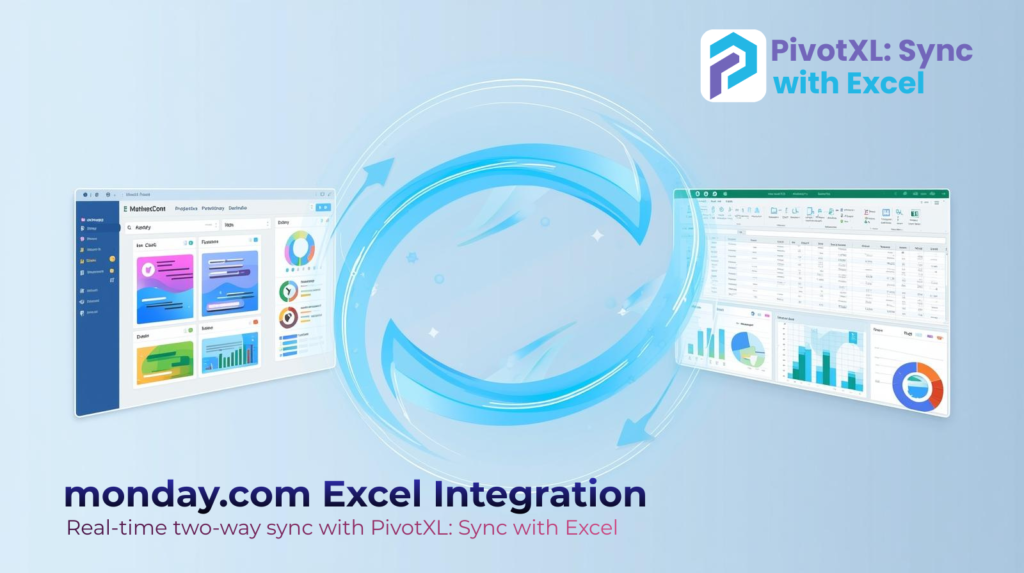
Monday.com Excel integration allows teams to connect their project workflows with powerful spreadsheet reporting. With PivotXL: Sync with Excel, users can seamlessly sync Monday.com boards into Excel, enabling real-time analysis, bulk updates, and enterprise-level reporting without manual exports.
PivotXL: Sync with Excel bridges this gap by enabling a seamless two-way integration between monday.com and Excel. With PivotXL, users can fetch boards, insert and update items, manage subitems, and even combine multiple boards — all directly from Excel.
This article is a complete guide to monday.com excel integration for teams that want real-time reporting and two-way synchronization.
1. monday.com excel integration: Connect with PivotXL Add-in
You can seamlessly sync your Excel sheets with monday.com using PivotXL: Sync with Excel.
Before logging in, you must install the PivotXL add-in in Excel.
Install PivotXL Add-in for PivotXL: Sync with Excel
Follow these steps to get started:
- Open Microsoft Excel and navigate to the Insert tab.
- Click Get Add-ins and search for PivotXL.
- Select PivotXL and click Add to install the add-in.
- Once installation is complete, PivotXL will be available within Excel.
This enables PivotXL features directly inside your Excel environment.
2. monday.com excel integration: Login with monday.com in Excel
Overview
This feature allows you to securely authenticate your monday.com account within Excel using PivotXL: Sync with Excel.
Steps
- Open Microsoft Excel and launch the PivotXL Add-in.
- Scroll and click Login with monday.com.
- Authorize access by signing in to your monday.com account.
Use Cases
- Enable live reporting from monday.com.
- Allow analysts to work directly in Excel.
- Establish a secure integration for enterprise users.
3. Get Board Data with PivotXL: Sync with Excel
Overview
Fetch any monday.com board into Excel as a structured table.
Steps
- Click Get Board.
- Select the Workspace and Board.
- Click Fetch Board Data.
Use Cases
- Generate Excel-based dashboards.
- Perform offline analysis.
- Share board data with stakeholders.
4. Insert New Items from Excel using PivotXL: Sync with Excel
Overview
Create new monday.com items directly from Excel rows.
Steps
- Fetch the board data.
- Add new rows with required values.
- Click Add New Excel Items to monday.com.
Use Cases
- Bulk task creation.
- Migrating spreadsheets into monday.com.
- Importing leads or tickets.
5. Update Existing Items with PivotXL: Sync with Excel
Overview
Modify existing items by editing Excel cells.
Steps
- Fetch board data.
- Edit required fields.
- Click Send Updated Data to monday.com.
Use Cases
- Mass status updates.
- Data correction.
- Workflow automation.
6. Change Item Groups with PivotXL: Sync with Excel
Overview
Move items between groups directly from Excel.
Steps
- Modify the Group column.
- Click Change Group of Selected Items.
Use Cases
- Reorganizing project phases.
- Managing pipelines.
- Moving backlog to active work.
7. Manage Subitems with PivotXL: Sync with Excel
Insert Subitems
- Fetch board data.
- Insert a new row.
- Paste parent Item ID.
- Enter subitem name.
- Click Add New Subitems to monday.com.
Update Subitems
- Modify subitem row.
- Update Status, Due Date, and Priority.
- Click Send Updated Data to monday.com.
Use Cases
- Task breakdown.
- Sprint planning.
- Checklist management.
8. Combined Boards using PivotXL: Sync with Excel (Auto Mapping)
- Open the Combined Boards tab and click New Combined Board.
- Enter a Board Mapping Name and click Add Board.
- Select the Workspace and Board for each board you want to combine.
- (Optional) Use Column Options to customize specific column mappings.
- Click Auto Map Columns, then scroll down and click Save Mapping.
- Click Get Combined Boards, select the mapping, and click Fetch Combined Board Data.
- Modify any column values and click Sync to Monday.com to update all connected boards.
Overview
Combine multiple boards into a single Excel view.
Key Features
- Auto column mapping.
- Unified reporting.
- Two-way sync.
Use Cases
- Cross-team dashboards.
- Executive reporting.
- Portfolio management.
9. Combined Boards using PivotXL: Sync with Excel (Manual Mapping)
- Open the Combined Boards menu tab and click the Combined Boards button.
- To create a new combined board, click New Combined Board.
- Enter a name for the Combined Board Mapping.
- To combine multiple boards, click Add Board for each board and select the required Workspace, Board, and specific Columns.
- After adding the boards, click Add Mapping. Manually map the required columns and then click Save Mapping.
- In Excel, after logging in, click Get Combined Boards, select the combined board mapping, and click Fetch Combined Board Data.
- The mapped columns will appear in the Excel sheet with the label (Mapped) in the column names.
Overview
Manually control how columns from different boards are merged.
Use Cases
- Standardizing different workflows.
- Custom analytics.
- Department-level consolidation.
10. Archive Columns in Combined Boards
Overview
Hide unnecessary columns from Excel view.
Benefits
- Cleaner sheets.
- Better performance.
- Focused reporting.
Why Teams Choose PivotXL: Sync with Excel
PivotXL: Sync with Excel is built for data-driven organizations that want a powerful, reliable way to connect monday.com with Microsoft Excel.
With PivotXL: Sync with Excel, teams get:
- Zero-code integration between monday.com and Excel
- Two-way synchronization for real-time updates
- Enterprise-grade security and authentication
- Real-time reporting inside Excel
- Native Excel experience without manual exports
PivotXL: Sync with Excel eliminates manual data transfers, reduces reporting errors, and enables teams to work faster with the tools they already trust.
Final Thoughts on PivotXL: Sync with Excel
PivotXL: Sync with Excel transforms Excel into a powerful operational interface for monday.com.
Instead of switching tools, copying data, or building complex integrations, teams can manage their entire workflow directly from Excel using PivotXL: Sync with Excel — with full control, visibility, and automation.
If your organization relies on both monday.com and Excel, PivotXL: Sync with Excel is not an add-on — it’s a productivity layer.
Get Started with PivotXL: Sync with Excel Today
With PivotXL, you can:
- Sync Monday.com boards directly into Excel
- Create, update, and manage items and subitems
- Combine multiple boards into unified reports
- Perform two-way real-time synchronization
- Eliminate manual exports and data duplication
PivotXL: Sync with Excel is built for teams that need accuracy, speed, and control in their reporting workflows.
Whether you are a project manager, analyst, or operations leader, PivotXL: Sync with Excel enables you to turn Excel into a real-time operational dashboard for monday.com.
Start syncing smarter today.
Install PivotXL: Sync with Excel and transform how your team works with monday.com data.
👉 Install PivotXL: Sync with Excel
About PivotXL
PivotXL is a modern FP&A platform and Excel alternative that helps finance and operations teams plan, analyze, and automate business workflows.
It combines a centralized database, powerful calculation engine, and workflow automation, removing the complexity and limitations of traditional spreadsheets while keeping familiar Excel-style workflows.
PivotXL enables teams to move beyond manual models and build scalable, reliable, and audit-ready planning systems.
Learn more: https://pivotxl.com